
How to Cancel a Subscription in TrellisWP
All Trellis subscriptions have been canceled as of October 20, 2025. You do not need to cancel the Trellis subscription.
The API will remain active and available at no charge until October 20, 2026. See the Trellis Shutdown announcement.
If you no longer need your subscription to one of your purchased products, canceling is a quick process.
- Login to the TrellisWP which was formerly marketplace.mediavine.com
- (please note that this is a Mediavine Marketplace login, separate from your Mediavine Publisher Dashboard login if you are a Mediavine publisher)
- (please note that this is a Mediavine Marketplace login, separate from your Mediavine Publisher Dashboard login if you are a Mediavine publisher)
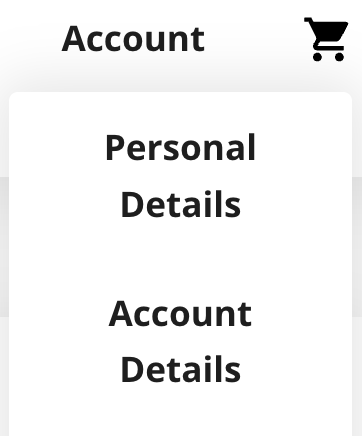
- Hover over “Account“, then select “Account Details“:
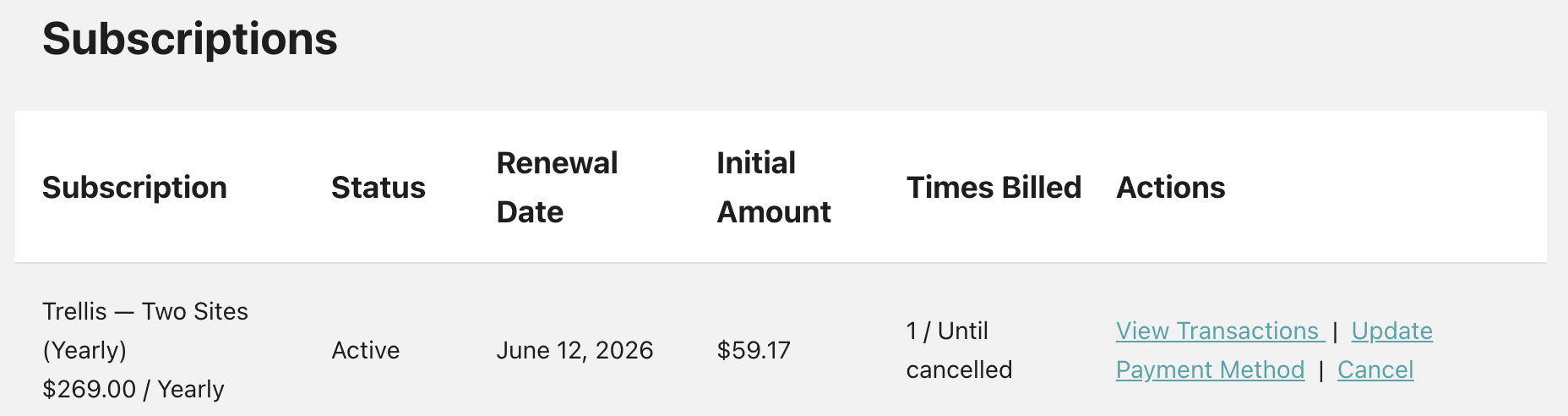
- Once there, you can scroll down until you see “Subscriptions“. Find the subscription you want to cancel and click “Cancel” in the right hand column.
- This will trigger a pop-up in your browser asking you to confirm that you want to cancel. Click “Ok“.

- Once that’s done, you’ll see that the Subscription now shows as “Cancelled“. You can always click “Renew” on the right hand side, if you ever wish to resume with that subscription.
